


Table of Contents
Code for Kids – coding for 4 year olds
Learn HTML Day 1 Practice – coding for 4 year olds
These 30-minute bite-size pages were written and designed to be used in schools. They are free to download and use (as long as I’m credited). All exercises use ‘Notepad ++’ which can be downloaded for free from Notepad Plus Plus. Or Window user use notepad also, Don’t need to download other software.

Setting up your project: – 9 codes
Windows Machine
- Navigate to your ‘My Documents’ folder.
- Create a new folder called ‘Website’.
- Click into this folder and create three new folders called:
- Styles
- Images
- Scripts
Apple Mac
- Open ‘Finder’ and navigate to your ‘Documents’ folder.
- Create a new folder called ‘Website’.
- Click into this folder and create three new folders called:
- Styles
- Images
- Scripts
Please note, Notepad ++ does not offer a version for Apple computers. Three alternatives are:
What is HTML
Introduction to HTML – coding decoding ques
So what is HTML? HyperText Markup Language (HTML) is the primary markup language for displaying web pages and other information that can be displayed in a web browser.
HTML is written in the form of HTML elements consisting of tags enclosed in angle brackets (like <html>), within the web page content. HTML tags most commonly come in pairs like <h1> and </h1>, although some tags, known as empty elements, are unpaired, for example <img>. The first tag in a pair is the start tag; the second tag is the end tag (they are also called opening tags and closing tags). In between these tags, web designers can add text, tags, comments and other types of text-based content.
The purpose of a web browser is to read HTML documents and compose them into visible or audible web pages. The browser does not display the HTML tags but uses the tags to interpret the content of the page.
Basic HTML Tags
Learn HTML Day 2 Practice
- Double click the ‘Notepad++’ icon on your desktop. You should now see a blank page
- Type the following code:
<html><head>
<title>My Name is</title>
</head>
<body> Hello World </body>
</html>
Remember: Each tag you open <tag> must be closed </tag>
Read & learn : Future Tense
| Notepad User | Notepad ++ User or Other |
| Click ‘File’, ‘Save As’ – A pop up will now appear 3. Choose where you wish to save your file. (Remember this location) 4. In the ‘Filename’ box at the bottom name your file ‘index.html’ or any name which one you want. | Click ‘File’, ‘Save As’ – A pop up will now appear 3. Choose where you wish to save your file. (Remember this location) 4. In the ‘Filename’ box at the bottom name your file ‘index’. 5. From the ‘Save as type’ box, click the drop-down and choose ‘HyperText Markup Language file’ – this is about halfway down. |
Test Your First Page – coding classes for 10 year olds
Now we will test your first HTML page.
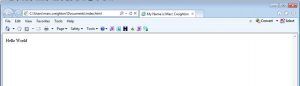
- Click the ‘Run’ menu and choose ‘Launch in IE’. Your page will now be displayed and look like this:
Note how Internet Explorer has translated the tags and displayed only ‘Hello World’ and your name on the page.
Close ‘Internet Explorer’ and go back to ‘NotePad ++’.
We will now increase the size of the ‘Hello World’ text using ‘H’ tags. To do this:
- Change the ‘Hello World’ line, so it looks as follows
<h1>Hello World</h1> - Now save your file by clicking the blue ‘Disk’ icon.
Now rerun your page.
- Click the ‘Run’ menu and choose ‘Launch in IE’.

Try This
What happens to the ‘Hello World’ text when you add the <h1> tag?
If you have time, try the following:
- Change the ‘Hello World’ line, so it looks as follows
<h1>Hello World</h1>
<h2>Hello World</h2>
<h3>Hello World</h3>
<h4>Hello World</h4>
<h5>Hello World</h5>
- Now save your file by clicking the blue ‘Disk’ icon.
- Click the ‘Run’ menu and choose ‘Launch in IE’.
Common Tags
| Tag | Description |
| <a> | Defines an anchor |
| <b> | Define bold text |
| <blockquote> | Defines a long quotation |
| <body> | Defines the document’s body |
| <br /> | Defines a single line break |
| <button> | Defines a clickable button |
| <cite> | Defines a citation |
| <div> | Defines a section in a document |
| <em> | Defines emphasized text |
| <h1> to <h6> | Defines HTML headings |
| <head> | Defines information about the document |
| <hr /> | Defines a horizontal line |
| <html> | Defines the root of an HTML document |
| <i> | Defines italic text |
| <img> | Defines an image |
| <li> | Defines a list item |
| <ol> | Defines an ordered list |
| <p> | Defines a paragraph |
| <q> | Defines a short quotation |
| <span> | Defines a section in a document |
| <strong> | Defines strong text |
| <style> | Defines style information for a document |
| <table> | Defines a table |
| <td> | Defines a cell in a table |
| <title> | Defines a title for the document |
| <tr> | Defines a row in a table |
| <ul> | Defines an unordered list |
| <sub> </sub> | H<sub>2</sub>O : H2O |
| <sup> </sup> | a<sup>2</sup>+b<sup>2</sup>: a2+b2 |
| <tt> </tt> | Typewriter Text |
| <code></code> | Code formate text |
| <small></small> | Small text( Simple formate) |
| <big> </big> | Bold letter |
| “>” | > 5>4 eg. 5>4 |
| “<” | < 10<20 eg. 10 <20 |
| <strike></strike> | Colgate |
| © | © |
| ® | ® |
| <Center> </center> | For Center Alignment |
| <p align=”left”> | Left Alignment |
| <p align=”right”> | Right alignment |
Some of the available tags:
There are lots more tags available to use but these are the key ones we will be focusing on.

Lesson 2
- Click ‘File’ and then ‘Open’, choose the file that you created in Lesson 1.
- You should now see the following HTML
- Change your HTML, so it looks like this (highlighted in Red):
<html>
<head>
<title>My Name is...</title>
</head>
<body>
<p style="color:blue;">Hello World</p>
</body>
</html>
Notice how we now use the ‘<p>’ tag – this is known as the ‘Paragraph’ tag and is used to display blocks of text.
Can you spot the spelling mistake in the line we changed? It’s the word ‘Color’ – because this is the American spelling.
- Save your file and from the ‘Run’ menu choose ‘Launch in IE’. What happens?
Repeat the exercise using:
- Red
- Salmon
- Lime
Background Colours
You can also apply colours to the background of your page and the <p> tag you have created, to do this:
- Change your HTML as follows:
<html>
<head>
<title>My Name is...</title>
</head>
<body style="background-color:green">
<p style="color:blue;">Hello World</p>
</body>
</html>
- Save your file and from the ‘Run’ menu choose ‘Launch in IE’. What happens? That’s right, the background colour changes to ‘Green’ and your text is still blue.
- Try this exercise again using some of the colours on the next page, which colour combinations are your favourite?
To the right is a table with a selection of colours that can be used in HTML. There are three different ways to display colours in HTML, all three examples below have the same colour just in different ways.
- The HTML name.
<p style=”color:IndianRed;”>Hello World</p> - The ‘HEX’ code – Hex stands for Hexidecimal
<p style=”color:#CD5C5C;”>Hello World</p> - The RGB code – RGB means Red, Green & Blue
<p style=”color:rgb(205,92,92)”>Hello World</p>
Practice:
<body bgcolor="red">
2. <body background=”folder/image name”>
<body background=”image/jellyfish.jpg”>
3. <hr width=”200px” color=”blue” size=”50″>
You can use all values in percentage also this also good for site design.
4. <hr width=”100%” color=”blue” size=”50″>
Using Hyperlinks
Lesson 3
Hyperlinks point to a whole page or a specific element within a page. They are a ‘Navigation’ element.
- Open the file that you created in Lesson 1.
- Delete any code between the <body> </body> tags.
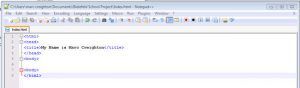
Your screen should now look like this:
- Now type the following between the <body> </body>
<a href="https://socialmediamanager.ie">Visit Social Media Manager</a> - Now ‘Save’ & ‘Run’ your page.
When the page runs, what do you see?
- You should see the words Visit Social Media Manager notice how all hyperlinks are in blue and are underlined.
- Click the link; the Social Media Manager web page should appear in place of your web page.
- Now append the code to the following:
<a href="https://socialmediamanager.ie" target="_blank">Social Media Manager</a>
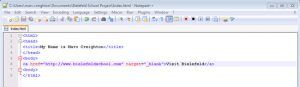
Repeat this exercise using some of the other options listed below and see what happens.
| Value | Description |
| _blank | Opens the linked document in a new window or tab |
| _self | Opens the linked document in the same frame as it was clicked (this is the default) |
| _parent | Opens the linked document in the parent frame |
| _top | Opens the linked document in the full body of the window |
- Now replace:
<a href="https://socialmediamanager.ie" target="_blank">Visit Social Media Manager</a>
With
<a href="file:///C:/">Your hard drive.</a>
- ‘Save’ and ‘Run’ your page, click the ‘Your hard drive link’. What happens:
- Windows Explorer opens showing the contents of your C:/ drive. While this exercise is useful, it’s unlikely you would ever use this.
Working With Images -coding classes for 6 year olds
Lesson 4
- Double click the icon on your desktop to open ‘Notepad++’
- Click ‘File’ & ‘Close’ to close any files that appear.
- Navigate to the folder called ‘Website Files’ on your network and open Lesson4.html
You will now see the following code:
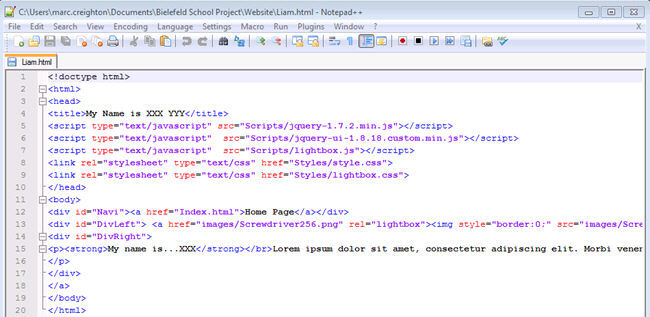
Note that there is more HTML in this file than you would have seen in previous lessons, these contain:
- <!doctype html> – Tag that tells the browser that this is a HTML5 page
- <script></script? – This tag links to other files on the website such as JavaScript/Jquery files. Explanation of these files can be found here https://jquery.com/. We will use script files for the interactive stuff on our site.
- <link></link> – Links ‘Style Sheets’ to our page. Style sheets define the look and of our page and separate the style from the content in our page.
- <div></div> – Known as a ‘Division’ tag, The <div> tag is used to group elements to format them with styles, in our example, each ‘Div’ tag has its ID that’s linked to a style.
- On line number 4 find: <title>My Name is XXX YYY</title>
- Replace ‘XXX YYY’ with your name.
- On line number 15 find: <strong>My name is…XXX</strong>
- Again replace ‘XXX’ with your name.
- To display a static image you use the <img></img> tag. Inside this tag you tell the browser where to find your image i.e.<img> src=”images/Screwdriver128.png”</img> images is our folder name and Screwdriver128.png is our file name.
- To display a dynamic (clickable image) you need to use the <a href=””></a> tag.
In this exercise, we are doing something different, so we are using both.
- Now find line 15, this line is where you specify the location of the image you wish to use. Change both the href and src location to point to your image in the ‘images’ folder.
- ‘Save’ your page.
- Again in line 15 delete everything between the </br> tag and the closing </p> tag and replace this with your profile information.
- ‘Save’ and ‘Run’ your page. You should now see your profile page.
- ‘Click’ your picture – what happens?
- ‘Click’ ‘Home Page’ – What happens?
The Box Model Explained
Lesson 5
All HTML elements can be considered as boxes. The term “box model” is used when talking about design and layout. The box model is essentially a box that wraps around HTML elements, and it consists of: margins, borders, padding, and the actual content.
The box model allows us to place a border around elements and space elements about other items. This image illustrates the box model:
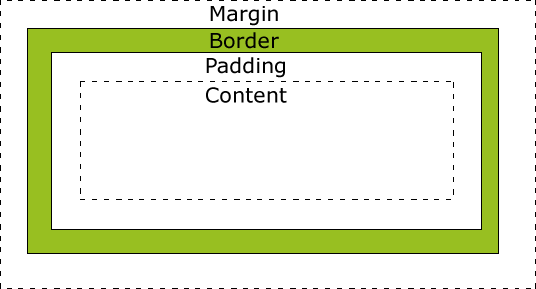
The box model.
Explanation of the different parts:
- Margin – Clears an area around the border. The margin does not have a background colour, it is completely transparent
- Border – An edge that goes around the padding and content. The border is affected by the background colour of the box
- Padding – Clears an area around the content. The padding is affected by the background colour of the box
- Content – The content of the box, where text and images appear
To set the width and height of an element correctly in all browsers, you need to know how the box model works.
Source: W3Schools.com
Using Basic Styles
Lesson 6
- Click ‘File’ & ‘Close’ to close any files that appear.
- Navigate to the folder called ‘Website Files’ on your network and open Lesson5.html
You will now see the following code:

Note that there is more HTML in this file than you would have seen in previous lessons, these contain:
- Click at the end of line 17 and press return.
- Now type the following tag <hr>
- ‘Save’ and ‘Run’ your page – what happens? – You should see a horizontal line below your text.
- Now delete the <hr> tag and remember to ‘Save’ your page.
- Go to line 15 and click after <p and press space
- Type style=”border:#F00 dashed thick”
- ‘Save’ and ‘Run’ your page – what happens? – This will place a border around your text that is Red, in a dashed style and is thick.
My name is…XXX Lorem ipsum dolor sit amet, consectetur adipiscing elit. Morbi venenatis, mi ac tincidunt pulvinar, enim arcu hendrerit arcu, sit amet mollis arcu est et mauris. Phasellus convallis scelerisque est vitae venenatis. Integer convallis elementum metus vel dignissim. In in neque a felis placerat venenatis. Sed urna purus, consectetur a cursus ut, dignissim vel elit. Ut massa arcu, semper quis rhoncus vitae, ultricies a nisi. Proin ac erat orci, vel consequat arcu. Vivamus augue dolor, laoreet molestie pharetra in, elementum et mi.
You can replace the ‘dashed’ style with:
- Dotted
- Double
- Inset
- Groove
- Hidden
You will notice that the text in your box is right up against the sides of the box, to move this in we need to apply ‘padding’, to do this:
- On line 15 add ; padding:10px; to the end of border:#F00 dashed thick
- ‘Save’ and ‘Run’ your page – What happens?
You should see that the text has moved inwards:
My name is…XXX Lorem ipsum dolor sit amet, consectetur adipiscing elit. Morbi venenatis, mi ac tincidunt pulvinar, enim arcu hendrerit arcu, sit amet mollis arcu est et mauris. Phasellus convallis scelerisque est vitae venenatis. Integer convallis elementum metus vel dignissim. In in neque a felis placerat venenatis. Sed urna purus, consectetur a cursus ut, dignissim vel elit. Ut massa arcu, semper quis rhoncus vitae, ultricies a nisi. Proin ac erat orci, vel consequat arcu. Vivamus augue dolor, laoreet molestie pharetra in, elementum et mi.
Creating Lists
Lesson 7
In HTML, there are two types of list, ordered (numbered) and unordered (bullet-pointed). In this exercise, you will create both.
Ordered Lists
- Double click the following icon on your desktop to open ‘Notepad++’
- Click ‘File’ & ‘Close’ to close any files that appear. You should now see a blank document.
- Type the following code:
<!doctype html>
<html>
<head>
<title>Welcome to our Homepage</title>
</head>
<body>
</body>
</html>
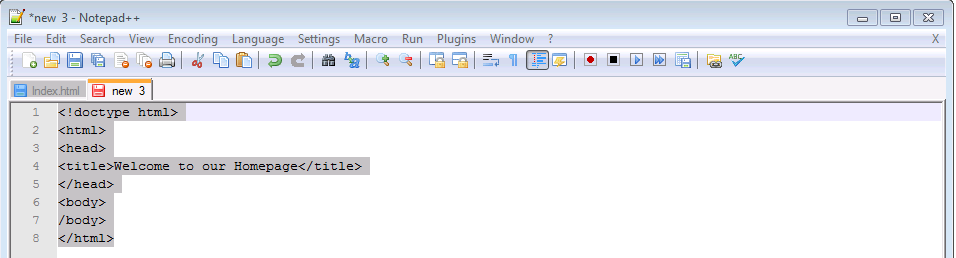
- You should now have something that looks like the image to the right:
- Now type the following code between the <body></body> tags:
<ol>
<li>Item One</li>
<li>Item Two</li>
</ol>
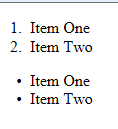
- Save your file and from the ‘Run’ menu choose ‘Launch in IE’. You should see the following in your browser. This example is an ordered list.

Unordered List
- Beneath the code you entered in step 5, type the following
<ul>
<li>Item One</li>
<li>Item Two</li>
</ul>
- You should now have:
<ol>
<li>Item One</li>
<li>Item Two</li>
</ol>
<ul>
<li>Item One</li>
<li>Item Two</li>
</ul>
<li>Item Two</li>
</ul>
- Save your file and from the ‘Run’ menu choose ‘Launch in IE’. You should see the image above right.
This is an example of an ‘Ordered’ and ‘Unordered’ list. Lists can also be ‘Nested’ to create ‘Sub-items.
Unordered List
To create a list of nested items:
- Delete all your previously typed code between the <body></body> tags
- Now type the following:
<ol>
<li>Item One</li>
<ol>
<li>Sub-Item One</li>
<li>Sub-Item Two</li>
</ol>
<li>Item Two</li>
<ol>
<li>Sub-Item One</li>
<li>Sub-Item Two</li>
</ol>
</ol>
- Save your file and from the ‘Run’ menu choose ‘Launch in IE’. You should see the following in your browser.
Using Tables
Lesson 8
HTML tables are used when you need to display data or images in a tabular format. An example is shown below:
| Name | Designation | Office |
|---|---|---|
| Mr. John Doe | Software Developer | Tokyo |
| Ms. Cara Wagner | Integration Specialist | London |
| Mr. Bruno Stevens | WordPress Developer | New York |
Tables are created using <table> tag. Tables are divided into rows <tr> which contain cells <td>. <td> tags can contain text, images, tables or forms.
Let’s start by creating a table.
- Double click the icon on your desktop to open ‘Notepad++’
- Click ‘File’ & ‘Close’ to close any files that appear. You should now see a blank document.
- Type the following code:
<!doctype html>
<html>
<head>
<title>Lesson 7 </title>
<head>
<body>
<table>
<tr> <td> cell one</td> <tr>
</table>
</body>
</html>
You should now have the following:
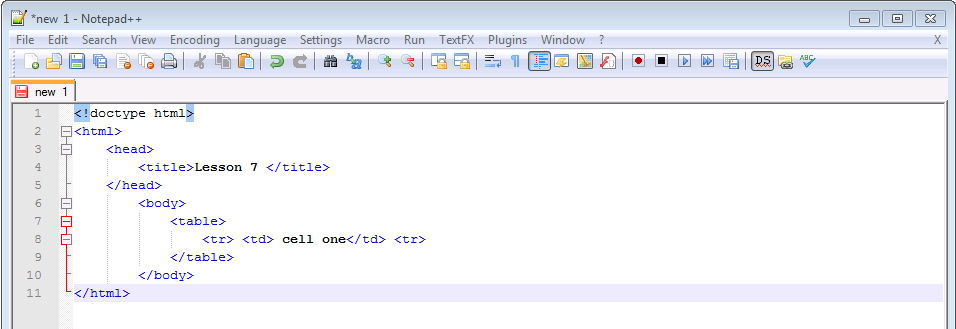
A simple table layout.
- Save your file and from the ‘Run’ menu choose ‘Launch in IE’. You should now see this:
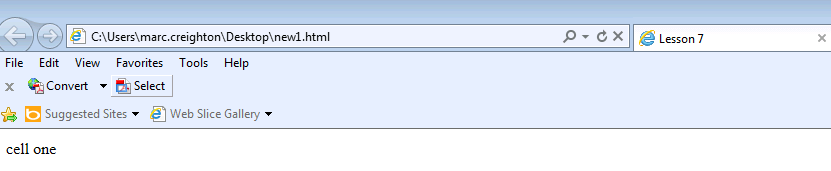
A simple table in the browser.
We have created a single cell table in this example. Lets now add further cells to this table.
- Close Internet Explorer so Notepad ++ is visible.
- Add the following code:
<!doctype html>
<html>
<head>
<title>Lesson 7 </title>
<head>
<body>
<table>
<tr> <td> cell one</td> <td> cell two</td> </tr>
<tr> <td> cell one</td> <td> cell two</td> </tr>
<tr> <td> cell one</td> <td> cell two</td> </tr>
</table>
- Save your file and from the ‘Run’ menu choose ‘Launch in IE’. You should see the following in your browser.
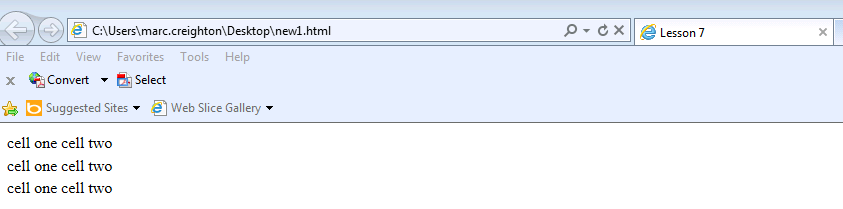
A three row table.
Applying a Border
While we have a table on our page, something is missing – a border.
- Close Internet Explorer so Notepad ++ is visible.
- Add the following code:
<!doctype html>
<head>
<title>Lesson 7 </title>
<head>
<body>
<table border="1">
<tr> <td> cell one</td> <td> cell two</td> </tr>
<tr> <td> cell one</td> <td> cell two</td> </tr>
<tr> <td> cell one</td> <td> cell two</td> </tr>
</table>
</body>
</html>
By using the border attribute we have placed a border around the table that is 1 pixel in size: <table border=”1”>
- Save your file and from the ‘Run’ menu choose ‘Launch in IE’. You should see the following in your browser.
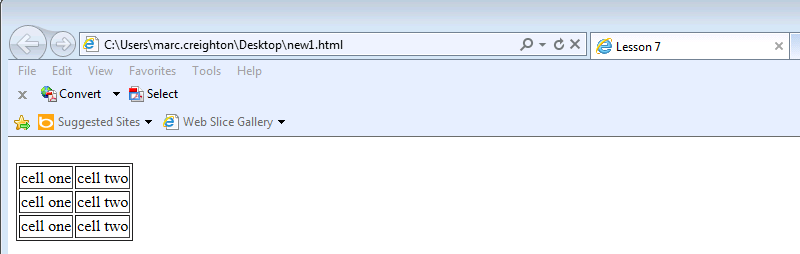
A table with a border.
There is are a more organised way to display tables where the table header, table body and table footer are divided.
- The <thead> tags groups the table header.
- The <tbody> tags group the table body.
- The <tfooter> tags group the table footer.
- Close Internet Explorer so Notepad ++ is visible.
- Add the following code:
<!doctype html>
<html>
<head>
<title>Lesson 7 </title>
<head>
<body>
<table border="1">
<tr>
<td> cell one</td>
<td> cell two</td>
</tr>
<tr>
<td> cell one</td>
<td> cell two</td>
</tr>
<tr>
<td> cell one</td>
<td> cell two</td></tr>
</table>
<br/>
<br/>
Another table:
<table border=”1”>
<thead>
<tr>
<th>header 1</th>
<th> header 2</th>
</tr>
</thead>
<tfoot>
<tr>
<td>Total</td>
<td>100</td>
</tr>
</tfoot>
<tbody>
<tr>
<td>Pen</td>
<td>25</td>
</tr>
<tr>
<td>Books</td>
<td>40</td>
</tr>
<tr>
<td>other </td>
<td>35</td>
</tr>
</tbody>
</table>
</body>
</html>
- Save your file and from the ‘Run’ menu choose ‘Launch in IE’. You should see the following in your browser. You should now see the following:
A table with a border.
Applying Width and Height to Tables
Width and heights can be applied to our table as well as the cells within the table cells. These can be applied using the ‘width’ and ‘height’ attributes within the table tag. Values can set in pixels or percent.
- Close Internet Explorer so Notepad ++ is visible.
- Add the following line to your <table> tag: <table border=”3″ width=”300″ height=”300″ >
- Your code should now look like this:
<!doctype html>
<html>
<head>
<title>Lesson 7 </title>
<head>
<body>
<table border="1">
<tr>
<td> cell one</td>
<td> cell two</td>
</tr>
<tr>
<td> cell one</td>
<td> cell two</td>
</tr>
<tr>
<td> cell one</td>
<td> cell two</td></tr>
</table>
<br/>
<br/>
Another table:
<table border="3"  width="300" height="300" >
<thead>
<tr><th>header 1</th>
<th> header 2</th>
</tr>
</thead>
<tfoot>
<tr>
<td>Total</td>
<td>100</td>
</tr>
</tfoot>
<tbody>
<tr>
<td>Pen</td>
<td>25</td>
</tr>
<tr>
<td>Books</td>
<td>40</td>
</tr>
<tr>
<td>other </td>
<td>35</td>
</tr>
</tbody>
</table>
</body>
</html>
- Save your file and from the ‘Run’ menu choose ‘Launch in IE’. You should see the following in your browser. You should now see the following:
Note how the table now has a fixed width and height of 300 pixels.

HTML Forms
Lesson 9
HTML forms are used to send data to the web server. A typical use of a form would be a customer survey. Several input fields can be used for this purpose, shown in the table below (HTML 5):
| Value | Description |
|---|---|
| button | Defines a clickable button (mostly used with a JavaScript to activate a script) |
| checkbox | Defines a checkbox |
| colorNew | Defines a color picker |
| dateNew | Defines a date control (year, month and day (no time)) |
| datetimeNew | Defines a date and time control (year, month, day, hour, minute, second, and fraction of a second, based on UTC time zone) |
| datetime-localNew | Defines a date and time control (year, month, day, hour, minute, second, and a fraction of a second (no time zone) |
| emailNew | Defines a field for an e-mail address |
| file | Defines a file-select field and a “Browse…” button (for file uploads) |
| hidden | Defines a hidden input field |
| image | Defines an image as the submit button |
| monthNew | Defines a month and year control (no time zone) |
| numberNew | Defines a field for entering a number |
| password | Defines a password field (characters are masked) |
| radio | Defines a radio button |
| rangeNew | Defines a control for entering a number whose exact value is not important (like a slider control) |
| reset | Defines a reset button (resets all form values to default values) |
| searchNew | Defines a text field for entering a search string |
| submit | Defines a submit button |
| telNew | Defines a field for entering a telephone number |
| text | Default. Defines a single-line text field (default width is 20 characters) |
| timeNew | Defines a control for entering a time (no time zone) |
| urlNew | Defines a field for entering a URL |
| weekNew | Defines a week and year control (no time zone) |
Source: https://www.w3schools.com
When creating a form, you use the <form>tag. The input elements are enclosed between the <form></form> tags.
Build a Form
- Double click the icon on your desktop to open ‘Notepad++’
- Click ‘File’ & ‘Close’ to close any files that appear. You should now see a blank document.
- Type the following code:
<!doctype html>
<html>
<head>
<title>Lesson 8 </title>
<head>
<body>
<form  name="simpleform" action="lesson 1.html" method="post">
Name :<input type="text" name="first name" size="10"> <br/>
Address :<input type="text" name="first name" size="20"><br/>
<input type="submit" value="submit"/>
</form>
</body>
</html>
- Save your file and from the ‘Run’ menu choose ‘Launch in IE’. You should now see this:

A simple form.
You will notice from your code that in your form tag we use the ‘name’ attribute, this has a value of ‘simpleform’ that uniquely identifies your form on the page. Also, we use the ‘action’ attribute to process the data on submission.
Please note HTML does not process the data, a scripting language like PHP, or asp would be used to process the data. For this exercise, we are redirecting the page to a non-existent page called ‘lesson 1.html. The ‘method’ attribute suggests how the data is processed.
Different Input Types
Lesson 10
Password
The password field is used for password entry. For security reasons, the password field does not display the input text. It masks the data with an ‘*’ (asterisk).
- Change the code you typed in the previous lesson to:
<!doctype html>
<html>
<head>
<title>Lesson 8 </title>
<head>
<body>
<form  name="simple form" action="lesson 1.html" method="post">
Name :<input type="text" name="first name" size="10"> <br/>
Email id :<input type="text" name="email" size="20"><br/>
password :<input type="password" name="pass" size="20"><br/>
<input type="submit" value="submit"/>
</form>
</body>
</html>
- Save your file and from the ‘Run’ menu choose ‘Launch in IE’. You should now see this:
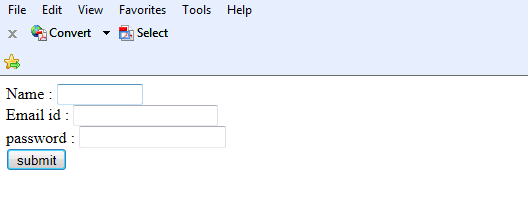
An example of and input type.
Text Area
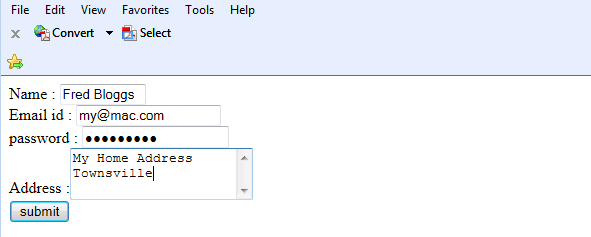
The textarea input type is used where multiple lines of free text may be required i.e. a ‘notes’ field.
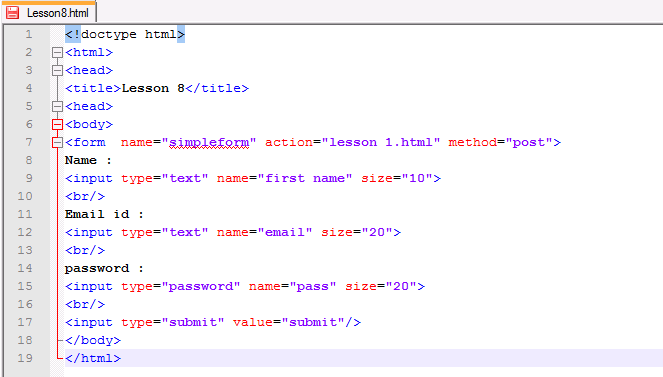
- Add the following code to your previous code below the <br/> tag after the password field.
Address :<textarea name="address" cols="20" rows="3"> </textarea><br/>
- Save your file and from the ‘Run’ menu choose ‘Launch in IE’. You should now see this:
Radio Button
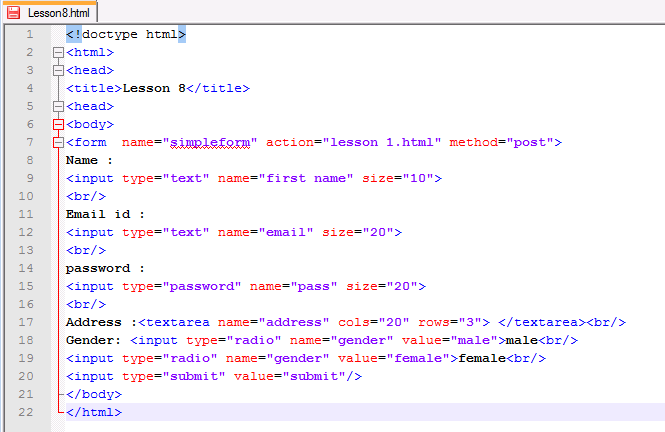
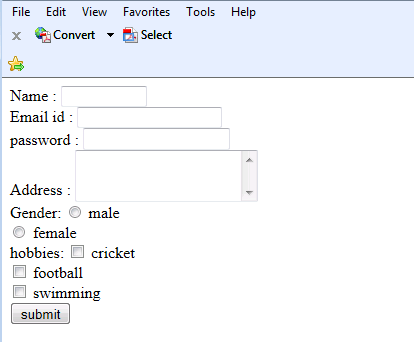
Radio buttons let users select from a list of the options. To group items together they must have the same value for the ‘name’ attribute. In our case, this is ‘gender’.
- Add the following line after your previous textarea code:
Gender: <input type="radio" name="gender" value="male">male<br/>
<input type="radio" name="gender" value="female">female<br/>
- Save your file and from the ‘Run’ menu choose ‘Launch in IE’. You should now see this:

An example of radio buttons.
Checkbox
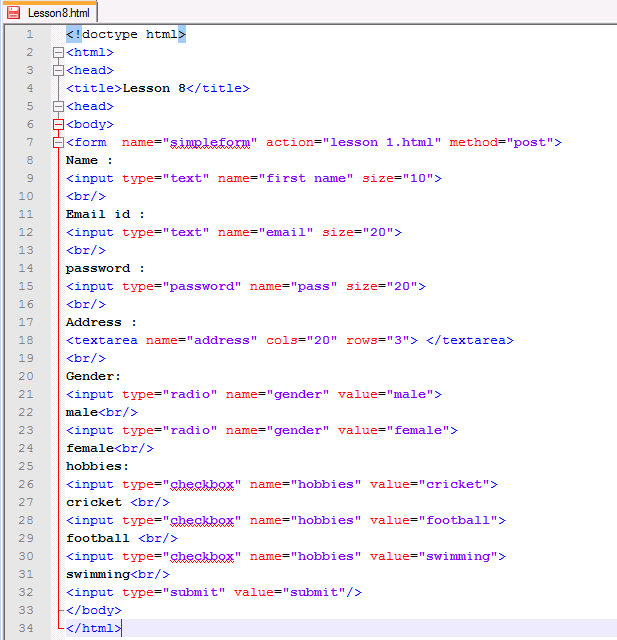
Using check boxes allows users to select one or many items from a list. To group items together they must have same value for the ‘name’ attribute. In our case this is ‘hobbies’..
- Add the following lines of code below your previous code:
hobbies: <input type="checkbox" name="hobbies" value="cricket">cricket <br/>
<input type="checkbox" name="hobbies" value="football">football <br/>
<input type="checkbox" name="hobbies" value="swimming">swimming<br/>
- Save your file and from the ‘Run’ menu choose ‘Launch in IE’. You should now see this:
In this lesson we have added a small number of ‘Input’ controls to our page.
Form Formatting
Lesson 11
In our last section ‘Using Different Inputs Types,’ we built a basic form it doesn’t look aesthetically pleasing. In this section, we will layout out our form using a table. For more information, see ‘Lesson 7‘.
- Change the code that you used in the previous section to this:
<!doctype html>
<html>
<head>
<title>Lesson 8</title>
<head>
<body>
<form name="simpleform" action="lesson 1.html" method="post">
<table width="400" border="1">
<tr>
<td>Name :</td>
<td><input type="text" name="first name" size="10"></td>
</tr>
<tr>
<td>Email id :</td>
<td><input type="text" name="email" size="20"></td>
</tr>
<tr>
<td>Password :</td>
<td><input type="password" name="pass" size="20"></td>
</tr>
<tr>
<td>Address :</td>
<td><textarea name="address" cols="20" rows="3"> </textarea></td>
</tr>
<tr>
<td>Gender:</td>
<td>male:
<input type="radio" name="gender" value="male">
<br/>
female:
<input type="radio" name="gender" value="female"></td>
</tr>
<tr>
<td>Hobbies:</td>
<td><input type="checkbox" name="hobbies" value="cricket">
cricket <br/>
<input type="checkbox" name="hobbies" value="football">
football <br/>
<input type="checkbox" name="hobbies" value="swimming">
swimming<br/></td>
</tr>
<tr>
<td><input type="submit" value="submit"/></td>
<td> </td>
</tr>
</table>
</body>
</html>
- Save your file and from the ‘Run’ menu choose ‘Launch in IE’. You should now see this:
The form is now nicely laid out. We have set a fixed width on the form and a small border using the width=”400″ border=”1″ attributes. You can take this styling further using different fonts and colours.
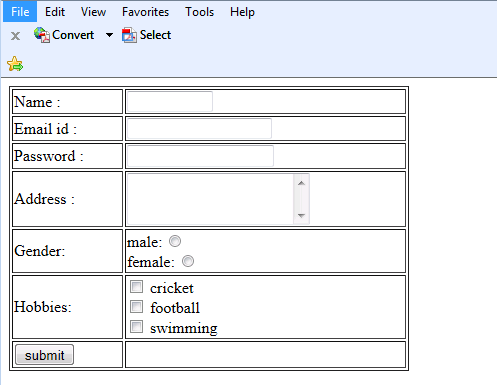
A formatted form.
Using Advanced Styles
Lesson 12
Introducing Stylesheets
CSS – Cascading style sheets and defines how HTML elements are displayed.
The most current version of CSS is version 3.0, and there are three types of CSS available to use
- Internal Stylesheets
- Inline stylesheets (discussed in Lesson 5)
- External stylesheets
There are also three parts to CSS
- Selector
- Property
- Value
An example would be: body{font-family: Arial;}
- Selector = ‘Body’
- Property = ‘Font-family’
- Value = ‘Arial’
Inline Styles
CSS – Cascading style sheets and defines how HTML elements are displayed.
The most current version of CSS is version 3.0, and there are three types of CSS available to use
- Internal Stylesheets
- Inline stylesheets (discussed in Lesson 5)
- External stylesheets
There are also three parts to CSS
- Selector
- Property
- Value
An example would be: body{font-family: Arial;}
- Selector = ‘Body’
- Property = ‘Font-family’
- Value = ‘Arial’
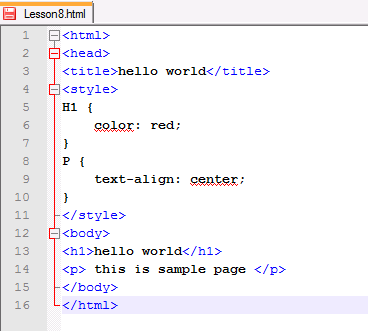
Let’s give this a try.
- Open ‘Notepad++’ from your desktop
- Click ‘File’ & ‘Close’ to close any files that appear. You should now see a blank document.
- Type the following code:
<!doctype html>
<html>
<head>
<title>Lesson 9</title>
<style>
H1 {
text-align: center;
}
P {
color: red;
}
</style>
</head>
<body>
<h1>Welcome User</h1>
<p> Lorem ipsum dolor sit amet, consectetur adipiscing elit. Morbi
venenatis, mi ac tincidunt pulvinar, enim arcu hendrerit arcu, sit amet
mollis arcu est et mauris. </p>
</body>
</html>
- Save your file and from the ‘Run’ menu choose ‘Launch in IE’. You should now see this:
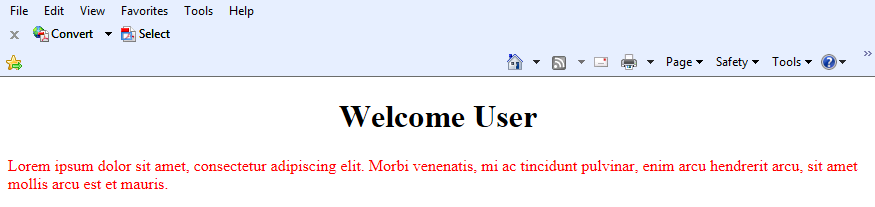

In this example, we used internal stylesheets using the ‘style’ tag.
<style>
H1{text-align:center;}
P{color:red;}
</style>
The above code was placed inside the opening <head> and closing </head> tags.
The styles we applied affected the following elements on the page:
- <h1>Welcome User</h1> – The style specified for <h1> was text-align which aligned the heading to the centre.
- <p> Lorem ipsum dolor sit amet, consectetur adipiscing elit. Morbi venenatis, mi ac tincidunt pulvinar, enim arcu hendrerit arcu, sit amet mollis arcu est et mauris. </p>. The style used for the <p> tag was ‘color’ which rendered the font colour between the <p> tags as Red.
You can also use ‘id’ as the selector, and reuse the same id in any element on the page. For example:
<!doctype html>
<html>
<head>
<title>Lesson 9</title>
<style>
H1{text-align:center;}
P{color:red;}
#firstpara{ color:blue;}
</style>
<body>
<h1>Welcome User</h1>
<p> Lorem ipsum dolor sit amet, consectetur adipiscing elit. Morbi
venenatis, mi ac tincidunt pulvinar, enim arcu hendrerit arcu, sit amet
mollis arcu est et mauris. </p>
<p id="firstpara"> Lorem ipsum dolor sit amet, consectetur
adipiscing elit. Morbi venenatis, mi ac tincidunt pulvinar, enim arcu
hendrerit arcu, sit amet mollis arcu est et mauris. </p>
</body>
</html>
External Stylesheets
External stylesheets are as the name suggests, a separate CSS file located elsewhere on the website. This is linked to the HTML page using the <link> tag. An external stylesheet is saved with a .css extension.
Styles defined in this external stylesheet can be used across the entire website and help provide a consistent look and feel for your website. Using external stylesheets allow you to separate your content from your styling.
- Open ‘Notepad++’ from your desktop
- Click ‘File’ > ‘New’.
- Click ‘File’ > ‘Save as’ change ‘Save as type’ to Cascading Style Sheets File’ from the drop down and name your file style.css > click ‘Save. Remember to save this in the same location as your .html file.
- Click ‘File’ > ‘New’.
- Click ‘File’ > ‘Save as’ change ‘Save as type’ to HyperText Markup Language file’ from the drop down and name your file ExternalStyleSheet.html > click ‘Save. Remember to save this in the same location as your .css file
- Now add the following code:
<!doctype html>
<html>
<head>
<title>Lesson 9</title>
<link href="style.css" rel="stylesheet" type="text/css">
<body>
<h1 id="heading1">Welcome User</h1>
<p id= "firstpara"> Lorem ipsum dolor sit amet, consectetur
adipiscing elit. Morbi venenatis, mi ac tincidunt pulvinar, enim arcu
hendrerit arcu, sit amet mollis arcu est et mauris. </p>
<p id="secondpara"> Lorem ipsum dolor sit amet, consectetur
adipiscing elit. Morbi venenatis, mi ac tincidunt pulvinar, enim arcu
hendrerit arcu, sit amet mollis arcu est et mauris. </p>
</body>
</html>
The following code is used to reference the external CSS file:
<link href="style.css" rel="stylesheet" type="text/css">
The ‘href’ attribute shows the path to the CSS file as the value; the ‘rel’ attribute defines the files relation with our file, which is stylesheet.
Now let’s add some styles to our CSS file.
- Switch to your style.css file and add the following code.:
body{
background-color:green;
}
h1{
color:red;
font-family:Arial;
}
#firstpara{
color:blue;
}
#secondpara{
color:brown;
}
- Save both your files and from the ‘Run’ menu choose ‘Launch in IE’. You should now see this:
Your First Web Page
Lesson 13
Now that you have worked through each of the exercises, we will build our first simple web page. We will create the layout using tables for simplicity.
The main areas of your web page will be:
- Header – For website logo/banner
- Menu – For navigation
- Content – Area for all your content
- Footer – Used copyright and terms etc.
We will now create our layout using a table.
- Open ‘Notepad++’ from your desktop
- Add the following code to your page:
<!doctype html>
<html>
<head>
<title>Lesson 10</title>
<link href="style.css" rel="stylesheet" type="text/css">
<body>
<table width="500">
<tr>
</tr>
<td  height="100" > banner</td>
<tr>
<td width="50" >menu</td>
<td width="100" height="300">content</td>
</tr>
<tr >
<td>footer</td>
</tr>
</table>
</body>
</html>

- Save your file and from the ‘Run’ menu choose ‘Launch in IE’. You should now see this:

While we can see the layout its not very clear. We will now add some colour to differentiate the sections.
- Now change your code adding some background colour:
<!doctype html>
<html>
<head>
<title>Lesson 10</title>
<body>
<table width="500">
<tr></tr>
<td  height="100" colspan="2" style="background-color:orange"> banner</td>
<tr>
<td width="50" style="background-color:green">menu</td>
<td width="100" height="300" style="background-color:cyan">content</td>
</tr>
<tr>
<td colspan="2" style="background-color:blue">footer</td>
</tr>
</table>
</body>
</html>
- Save your file and from the ‘Run’ menu choose ‘Launch in IE’. You should now see this:
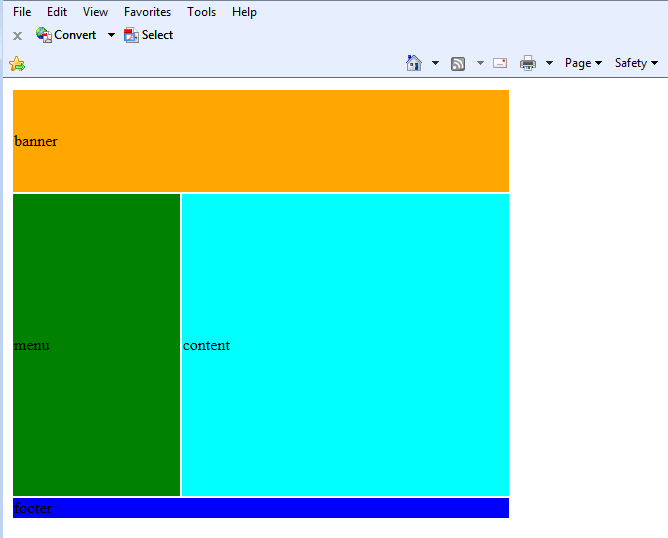
Now we can see a clear structure to our page. We can centre our layout by using the <center> tags.
- Add a <center> tag just after the <body> tag.
- Close the tag by placing a </center> tag just before the closing </body> tag.
Your code should look like this:
<!doctype html>
<html>
<head>
<title>Lesson 10</title>
<body>
<center>
<table width="500">
<tr></tr>
<td  height="100" colspan="2" style="background-color:orange"> banner</td>
<tr>
<td width="50" style="background-color:green">menu</td>
<td width="100" height="300" style="background-color:cyan">content</td>
</tr>
<tr >
<td colspan="2" style="background-color:blue">footer</td>
</tr>
</table>
</center>
</body>
</html>
- Save your file and from the ‘Run’ menu choose ‘Launch in IE’. You should now see this:
You have built your first elementary page.
Please note, while we have demonstrated how to build your layout using tables. This method is considered outdated and could cause problems for those using screen readers. Ideally, you would use CSS to create your designs, but this is outside of the scope of this tutorial.





[…] code for Kids […]